My computer blog is now moving to my new home page, http://www.lorenzobettini.it, however, all the posts already available in this blog will not be removed.
Wednesday, November 07, 2012


Tuesday, May 22, 2012
Wednesday, May 09, 2012
Eclipse internal Web Browser in Kubuntu Precise Pangoline 12.04
This can be seen as a sort of follow-up of my previous post, Eclipse internal Web Browser in Ubuntu Lucid: after installing Kubuntu Precise Pangolin 12.04 the internal browser of Eclipse stopped working. In particular, when using Mylyn Gerrit connector (relying on OpenID authentication, which requires the eclipse internal browser) I got this error
org.eclipse.swt.SWTException: Failed to execute runnable (org.eclipse.swt.SWTError: No more handles [Unknown Mozilla path (MOZILLA_FIVE_HOME not set)])and indeed, by looking at the preferences corresponding to the Web browser I cannot select the internal browser:

Fortunately, we can rely on another package:
sudo apt-get install libwebkitgtk-1.0-0and you'll enjoy Eclipse internal web browser again! :)
Friday, February 03, 2012
Closing the Eclipse Welcome screen programmatically
When writing Junit plugin tests in Eclipse I wanted to close the welcome page programmatically before starting the tests; looks like it's pretty easy :) Just use this @BeforeClass static method and you'll be fine!
   @BeforeClass
   public static void closeWelcome() {
       final IIntroManager introManager =
           PlatformUI.getWorkbench().getIntroManager();
       IIntroPart part = introManager.getIntro();
       introManager.closeIntro(part);
   }
Monday, December 26, 2011
Xtext 2.1: using Xbase variables
See the original post here:
Xtext 2.1: using Xbase variables
In this post, I’d like to continue to inspect how to use only a small part of Xbase and still have the control on the generation part: in particular (for other projects) I would like to retain the control on the generation for my model, while relying on the Xbase generation for the Xbase parts. Thus, in this post I’ll describe:
- how to integrate Xbase variables (XVariableDeclaration) and expressions (XExpression) in your DSL
- how to extend Xbase scoping for making the variables visible in the expressions
- write a generator for your DSL and reuse the XbaseCompiler for the code of XVariableDeclaration and XExpressions
Wednesday, November 23, 2011
Xtext 2.1: using Xbase expressions
See the whole blog post here:
Xtext 2.1: using Xbase expressions
I’d like to inspect how to use only a small part of Xbase and still have the control on the generation part: in particular (for other projects) I would like to retain the control on the generation for my model, while relying on the Xbase generation for the Xbase parts. Thus, in this post I’ll describe:
- how to integrate Xbase expressions (XExpression) in your DSL
- write a generator for your DSL and reuse the XbaseCompiler for the code of XExpressions
Monday, November 21, 2011
Sunday, October 30, 2011
Testing the Eclipse StatusLineManager
Here's the link to a new post, where I explain how to test the current text of the Status Line in Eclipse
Testing the Eclipse StatusLineManager
Wednesday, May 25, 2011
PhpBibliography goes International
The new version of PhpBibliography, 1.1.1, provides a new feature: Internationalization!
2 languages, besides English, are now supported: Italian and French.
I must thank David CHEMOUIL, who opened a feature request, and provided the French translation (of course, I did the Italian one :)
Now, the phpbibliography user can choose the language using the three flags on the top right corner; switching language will lead you to the same page you were visiting but in the selected language. The chosen language will be remembered, so you can keep surfing (or editing) the site with the selected language.
Here are some screenshots:


Tuesday, May 24, 2011
Making microphone work in Kubuntu Natty
 After I switched to Kubuntu Natty 11.04, my microphone stopped working (especially in Skype). I tried to adjust the microphone settings in Phonon System Settings, but, besides having too many devices to choose from, that settings dialog seems to have a bug which prevents the preferences to being saved. Not to mention that there is no way to test the input device from that setting dialog!
 Luckily, in that bug report I also found the solution to have microphone work!
The solution consists in installing the package pavucontrol, which provides a comfortable PulseAudio Volume Control dialog, which also gives you immediate feedback to see whether the microphone is working, and reduces the number of devices to choose from!
After you installed that package, Skype options dialog presents a button to open that volume control dialog
If you click the button you'll get the pavucontrol dialog, and in "Input Devices" tab you can choose the input device from the list and instantly check whether that's the right device: just speak in the microphone, and see whether the horizontal bar moves while you're speaking.
That's all! Now you're microphone is set correctly. :)
Sunday, May 22, 2011
Using Savannah with Mylyn
 The GNU software I maintain, Source-Highlight, Gengetopt and Gengen, are hosted on Savannah, which has its own bug tracking system. Recently I've started to use the wonderful Mylyn tool under Eclipse for but and feature tracking (in general, "tasks"), and I wanted to use it also with Savannah, but since there is no specific connector, we can use the generic web connector (actually, having a specific connector would be better, but for the moment, that's better than nothing ;)
 Since there is not a template ready to use for accessing Savannah from Mylyn, I thought I could blog about my experience, hoping that it's useful to others.
First of all, you need mylyn in eclipse together with its ui functionalities (but if you downloaded an eclipse distribution you'll likely have it already); then you need to install the Web Templates Connector, from the update site http://download.eclipse.org/tools/mylyn/update/incubator (add a repository)

Then, after you restarted eclipse, open the Task Repositories View, choose Add Task Repository, and select Web Template,
For this tutorial I will use my GNU project Source-Highlight as an example:
- Server: https://savannah.gnu.org/bugs/?group=src-highlite
- Label: choose a label to represent your task repository
- put your savannah username and password
- Additional Settings
- Add two parameters:
- group with value the name of the project on savannah (in my case it's src-highlite)
- tracker with the specific kind of tasks you want to follow on savannah (e.g., bugs, or patches, etc.)
- Advanced Configuration
- Task URL: https://savannah.gnu.org/${tracker}/?
- New Task URL: ${serverUrl}&func=additem
- Query Request Pattern: ${serverUrl}&chunksz=150&report_id=100
- Query Pattern:
<td.*?#({Id}[0-9]+).*?/td>\n<td ><a.*?>({Description}.*?)</a></td>

When you click Finish, also accepts to add a query for the repository.
In the query properties dialog you can check whether all the inserted parameters for the task repository are correct, by clicking on the preview button (you should see a list of bugs, otherwise the dialog should tell you that query is not correct and cannot produce results)

Now, if you open the view Task List, you should see the bugs related to your query.

Now clicking on a bug will open a browser editor window in eclipse and you access that bug page. Remember that, since you access the savannah repository through a generic web connector you won't be able to enjoy the typical Mylyn rich editor for bugs, like the ones for bugzilla and trac). However, you'll still have the context tab and the private tab.

Hope this helps :)
Tuesday, March 22, 2011
Problems with microphone in Linux
I was experiencing problems with the microphone (in Skype) in Kubuntu Maverick 10.10: no input was received by the microphone, either in Skype or using the arecord. The soundcard is an
Intel [HDA Intel], device 0: AD198x Analog [AD198x Analog]and kmix was showing the capture device's volume at the maximum.
I don't know whether KDE configuration was spoiled by something, e.g., an update. However, I solved the problem by setting the capture source to the front mic, using alsamixer command line command (kmix does not seem to show any option about this).
So, if you have similar problem, run alsamixer from the command line, press F4 so that it shows only the Capture devices, set the volume of the capture devices (in my case Front mic) as high, and, most importantly, set the Input sources of capture (in my case Front mic).

Now your mic should work!
Tuesday, February 08, 2011
Find and Rename files in Linux
I had to rename many files (in particular their extensions) which were spread throughout many folders.
I already knew find and rename utilities but I had never used them together...
here's the command line to rename all files in all the folders of the current directory with extension .first to .second
find . -name "*.first" -exec rename -v 's/\.first$/\.second/' {} +
hope this helps :)
Thursday, January 13, 2011
Compile Linux Kernel in Ubuntu with KernelCheck (and Nvidia drivers)
 I've always recompiled Linux kernel on all my Linux installations, starting from the kernel sources of the Ubuntu repositories. Then I've heard about the famous 200 lines kernel patch, that I wanted to try, but it doesn't seem to apply to ubuntu linux sources (or at least I had this impression), and I didn't want to try the alternatives.
Then I stumbled upon this nice article about using KernelCheck (which I didn't know) to compile the linux kernel (not from the ubuntu repositories):
a graphical user interface program designed to make the kernel-compiling process as easy as the click of a button. KernelCheck will fetch the latest information from http://www.kernel.org, which hosts the source packages for the Linux kernel, and ask the user which one they would like to compile into a .deb package (with the option of installing the kernel after the compilation).The article also applies the 200 lines patch, so I decided to give it a try! The articles shows a video, but I'd like to blog about my experience with some screenshots.
Most important, I decided to blog about my experience because of the Nvidia drivers I have on some of my Linux computers, since the first experience with KernelCheck and nvidia drivers was really bad. I think I found a solution to deal with these drivers, so that I can compile the kernel, the patch, and have nvidia drivers work without a problem :)
After you installed kernelcheck, and run it you'll have some screens, and first of all you must retrieve available kernel information:


Then I select the custom compilation


Now, you can select some options.
At this point, it is crucial
- NOT to select the reconfiguration of X server
- NOT to install the nvidia driver
- to select "apply custom patch to the kernel" (if you want to try the 200 lines patch)
- I prefer not to install the kernel package after compilation: I'll do that myself


After the download of the needed packages is finished, you'll get a terminal window where you can apply manually the patch (that you can download it from here), and apply it, as it is shown in the screenshot (then you need to close the terminal window)

Then, you'll get the chance to configure the kernel before compilation. Make sure you have all the options you need set (it looks like kernelcheck starts from the current configuration, so, for instance, the processor family is already set as your current configuration).
To enjoy the 200 lines kernel patch, you must enable "Automatic process group scheduling" under "General setup", as shown in the following screenshot:

Then, the compilation starts, and, you know, it might take some time (though for my computer, and configuration it takes less than 1 hour)

Then, you'll be suggested to reconfigure the X server... DON'T DO THIS, and answer no

Then, the kernel deb packages (-image and -headers) will be ready in /usr/src, and you can manually install them.
Note that, during the installation, the Ubuntu kernel utilities will smartly compile and configure the current nvidia modules for you!
 Now, reboot and enjoy :)
P.S. I cannot swear my computer is faster now with the 200 lines kernel patch... but I have the impression it is :)
Monday, November 22, 2010
Eclipse icons in menus are not showing in Ubuntu Maverick Linux
I don't like Gnome and I usually use KDE, but on a specific computer I have to use Gnome, and I noted that after switching to Ubuntu Maverick, icons on eclipse menus were not showing anymore.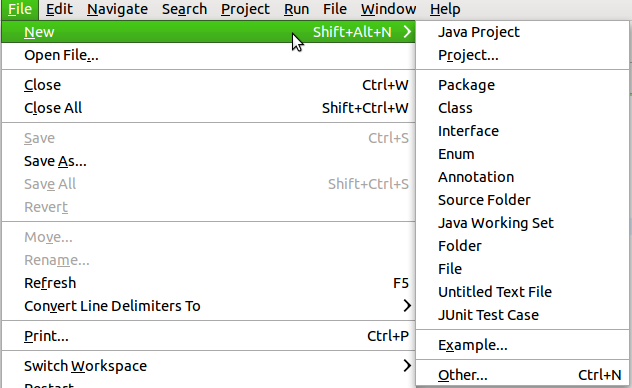
I asked on some newsgroups with no luck, then on IRC I was pointed to this bug, which solved my issue :)
You need to enable icons in menus with gnome configuration. You find some ways to do that on that bug report, but I simply ran gconf-editor on the command line, and enabled that checkbox:
Now my icons in menus are back :)
Wednesday, October 13, 2010
Using Compiz in KDE 4
 I've been using KDE 4 for some time now, and I was pretty happy with its own desktop effects. However, lately, I started to notice that kwin and xorg process were taking some CPU usage, and with graphic cards such as Intel GMA and ATI, the effects were not so smooth (while in Gnome with compiz they were much better). So I decided to try and use compiz with KDE as well; here's my (positive) installation and configuration experience.
First of all I installed all these packages
emerald libemeraldengine0 compiz compizconfig-settings-manager compiz-kde compiz-fusion-plugins-main compiz-fusion-plugins-extra fusion-iconThen you found the compiz-fusion application in my KDE menu, in System. Run it, and you can set some configuration options with that icon, in particular, you need to change the window decoration to emerald, and the window manager (to compiz). Then you must select reload window manager.


To keep compiz as the default window manager when KDE starts, you need to change System Settings -> Default Applications -> Window Manager (by selecting Compiz).

Of course, now you can configure compiz settings with its setting manager, but I suggest you to use the simpler configuration manager, simple-ccsm, as illustrated here.
Now enjoy compiz! :)
Tuesday, August 03, 2010
PhpBibliography 1.1.0
This new release of PhpBibliography features some nice features:
- First of all, themes are now supported so that the user can create his own theme (which will not be overwritten during phpbibliography updates), see this wiki page
- icons for known file extensions are shown for uploaded papers (see the screenshot)
- uploaded papers can be removed during editing
- the action menu was improved with tooltips
- search results can be shown also as bibtex

Wednesday, July 28, 2010
Merging Subtitles in Video Files with DivXConverter
I recently discovered this cool program, DivXConverter, which I didn't find in my Ubuntu distribution (you can download the .deb file, though, and install the required dependencies), but that's really useful and easy to use.
"DivX converter is a simple Mencoder frontend to Produce DivX Player Compatible AVI video format with the ability to merge subtitles . It support many video and audio filters and many presets."Now, the interesting features I've just used is the ability of merging a subtitle file (typically .srt) into a corresponding AVI file.
Here's what to do (see also the following screenshot):
- Add the avi file (and select the output folder and the compression, I left the default Normal compression)
- Make sure to select Xvid in the "Video Filters" tab to make sure the resulting avi is compatible with dvd/divx readers (at least the with ones I own)
- You can leave the default settings for Audio
- Select the subtitle file (I set ASCII as the encoding)
- Go back to the main window
- Press "Convert" and enjoy the resulting AVI file


Friday, July 09, 2010
mounting none on /dev failed: No such device
If you're experiencing this error message at boot in Linux (e.g., after you recompiled the kernel in Ubuntu Lucid)
mounting none on /dev failed: No such device
don't be scared, the boot will continue and there'll be no problem (at least, I read in some posts); I never experienced problems even with this error at boot.
But if you want to get rid of it, just make sure that you have
CONFIG_DEVTMPFS=y
in your .config file of your kernel source directory.
Wednesday, July 07, 2010
mSoma a Qt client for SomaFM
 Andrea Grandi proposed me a few weeks ago to try and develop a client for SomaFM, a streaming radio with near 16 different channels, available for free. Indeed we wanted to try to develop an application for our cool Nokia N900 smartphone. Since this phone is now based on my beloved Qt framework, I accepted with much pleasure.
The really cool thing was that, by relying on the qt-mobility APIs (new Qt APIs for mobile application developers), we could enjoy cross-platform developing: all the code that I wrote for this player was tested and debuged on my computer, as a desktop application. Then, we deployed on the Nokia N900 and tried it there (and it worked seamlessly).
For instance, this are some screenshots of msoma running as a desktop application (in Linux in this case):


Which is just a recompilation targeting Maemo (with this respect, the Nokia Qt SDK, based on QtCreator, is really helpful when developing).
Of course, this is the very first version of this application, and surely the UI should be different in the desktop application with respect to the cellphone version (in order to be more usable in the mobile devices). But, as it is, it's already enjoyable (but I may be biased ;)
Source code is available on Gitorious and it's always updated with latest version we're working on. If someone want to test the application, it's available in extras-devel repository ("msoma" under Multimedia section) of N900.
In case you want to use it as a desktop application, please remember that you need qt-mobility. I blogged about the installation of qt-mobility in Linux.
We really want to thank, Rusty Hodge, SomaFM's founder, who provided so many details about SomaFM for developing our application (and of course we thank him also for SomaFM itself :)
We look forward to receiving feedback, patches, suggestions, and help! :)
Our maemo profiles:
Of course, this is the very first version of this application, and surely the UI should be different in the desktop application with respect to the cellphone version (in order to be more usable in the mobile devices). But, as it is, it's already enjoyable (but I may be biased ;)
Source code is available on Gitorious and it's always updated with latest version we're working on. If someone want to test the application, it's available in extras-devel repository ("msoma" under Multimedia section) of N900.
In case you want to use it as a desktop application, please remember that you need qt-mobility. I blogged about the installation of qt-mobility in Linux.
We really want to thank, Rusty Hodge, SomaFM's founder, who provided so many details about SomaFM for developing our application (and of course we thank him also for SomaFM itself :)
We look forward to receiving feedback, patches, suggestions, and help! :)
Our maemo profiles:
Subscribe to:
Posts (Atom)

 Posts
Posts


